
Getting into Build Mode#
Walk up to your mailbox and choose Build Mode, or press the hammer button at the bottom of the screen while you are on your plot. Everything you change saves automatically, and neighbours can watch your plot change in real time, even though a barrier keeps them out while you build.
You can also build on a friend's plot if they give you Roommate or Co-Owner permissions, which is a good way to learn from someone more experienced.
Start with the basics videos#
If you have never built before, watch one of these first. naoetry's building basics video is made for people who have no idea where to start, and Cylito's tips all work with no gamepasses.
Never waste money: how refunds work#
This is the single most useful thing to know as a beginner.
| How you remove it | Money back |
|---|---|
| Undo (Ctrl+Z) | 100% |
| Sell it in the same build session | 95% |
| Sell it in a later session | 70% |
So experiment freely while you are still in Build Mode, and undo rather than sell when you change your mind. Leaving Build Mode and coming back later is what costs you. Blockbux items work differently: selling one puts it back in your inventory instead.
The controls worth learning first#
You do not need all of these on day one. Undo, rotate, Space for the top view and the Paint tool will cover most of a first house.
| Key | What it does |
|---|---|
| Q / E | Turn the camera left and right |
| W A S D | Move the camera |
| I / O | Zoom in and out |
| R | Rotate the item you are holding |
| Ctrl+Z / Ctrl+Y | Undo and redo |
| Hold Space | View the plot from directly above |
| Page Up / Page Down | Move up or down a floor (needs Multiple Floors or Basements) |
| G | Sell or delete tool |
| F | Paint tool. Shift+Click copies another item's colour |
| C | Clone tool |
| H / J | Turn the grid on or off / change grid size |
| U | Hide everything above the floor you are on |
| B | Change the time of day you see in Build Mode |
| Backspace | Go back a menu, or close the Build, Decorate and Inventory menus |
These are PC controls as listed on the Welcome to Bloxburg Wiki. Update 1.20.0 updated some keybindings, so if a key does not match, the buttons on the Build Mode sidebar do the same job. On mobile, everything is a sidebar button.
Build walls the fast way#
Update 1.20.0 in May 2026 added new placement options, and they save a lot of clicking:
- Box placement for walls, fences, floors and roofs. Drag once and you get a full rectangle, so a room is one move instead of four.
- Chain placement for walls, fences, structurals and paths, for drawing one continuous line.
The same update separated the Transform tool into move and rotate modes and improved the visuals for the building tools, so tutorials older than May 2026 may look slightly different from what you see.
Habits that make a first house look good#
- Plan the rooms before decorating. Walls and floors first, furniture last. Moving walls around a finished room costs money every time.
- Pick a colour palette and stick to it. Two or three colours across the whole house look better than every room being different. Use Shift+Click with the Paint tool to copy colours exactly.
- Avoid flat boxes. A house that is one rectangle looks like a starter house. Even a small section stepped forward or back, or a porch, makes the outside more interesting.
- Use the top view for layout. Hold Space. It is much easier to see whether a room is too tight from above.
- Landscape the plot, not just the house. Paths, trees and bushes do as much for how a house looks from the road as the house does.
- Check it at night. Press B to switch the time of day. A house with no outside lights disappears after dark.
- Watch plot data. Detail uses plot data. The plot size guide explains the limit and what to do when you reach it.
Where the money comes from#
Building is paid for with in-game money from jobs, daily rewards and skill levels. Our guides on making money fast and levelling up skills cover both. If you want to see what realistic starter budgets look like, house ideas by budget has real examples from 20k upward.
Learning from finished houses#
One of the fastest ways to get better is to look closely at finished builds: how the roof lines meet, where the windows sit, how a garden is laid out. Every build in our catalog has a full gallery of photos taken in game, so you can study them from every angle.
Bloxburg Builds makes finished Welcome to Bloxburg houses, cafes and estates, and places them on players' own plots for anyone who would rather skip the days in Build Mode. You do not need us to use anything on this page, though. The guides are free, they stay free, and lots of readers use them to build everything themselves. If you ever want a head start, these are a few of ours that fit this guide.
Finished houses worth studying
See all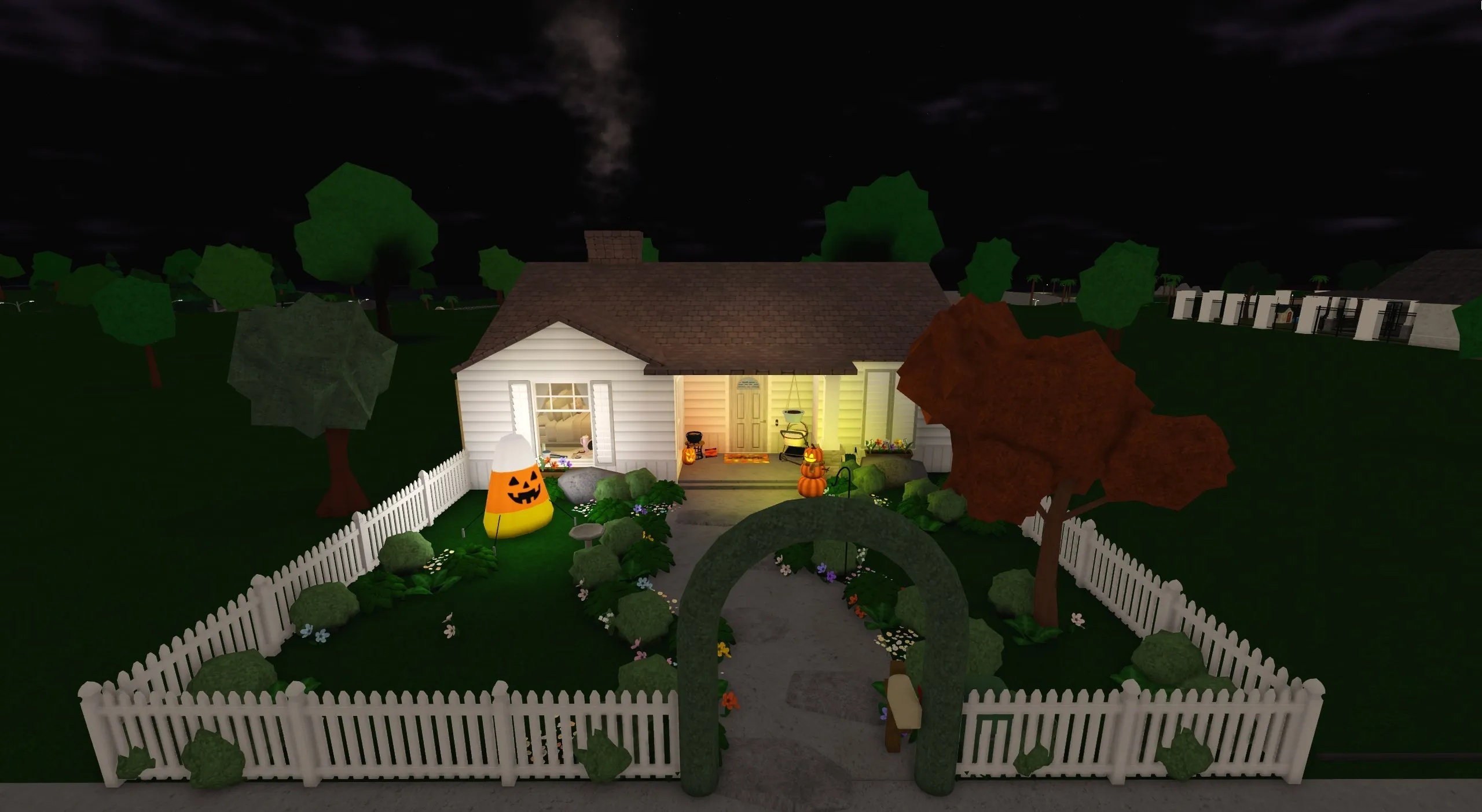 Hearthwick HouseA cozy single-story family house with warm traditional interiors, practical family spaces, multiple bedrooms, and a fenced outdoor area designed for relaxed everyday roleplay.$2.99Plot cost $165,400
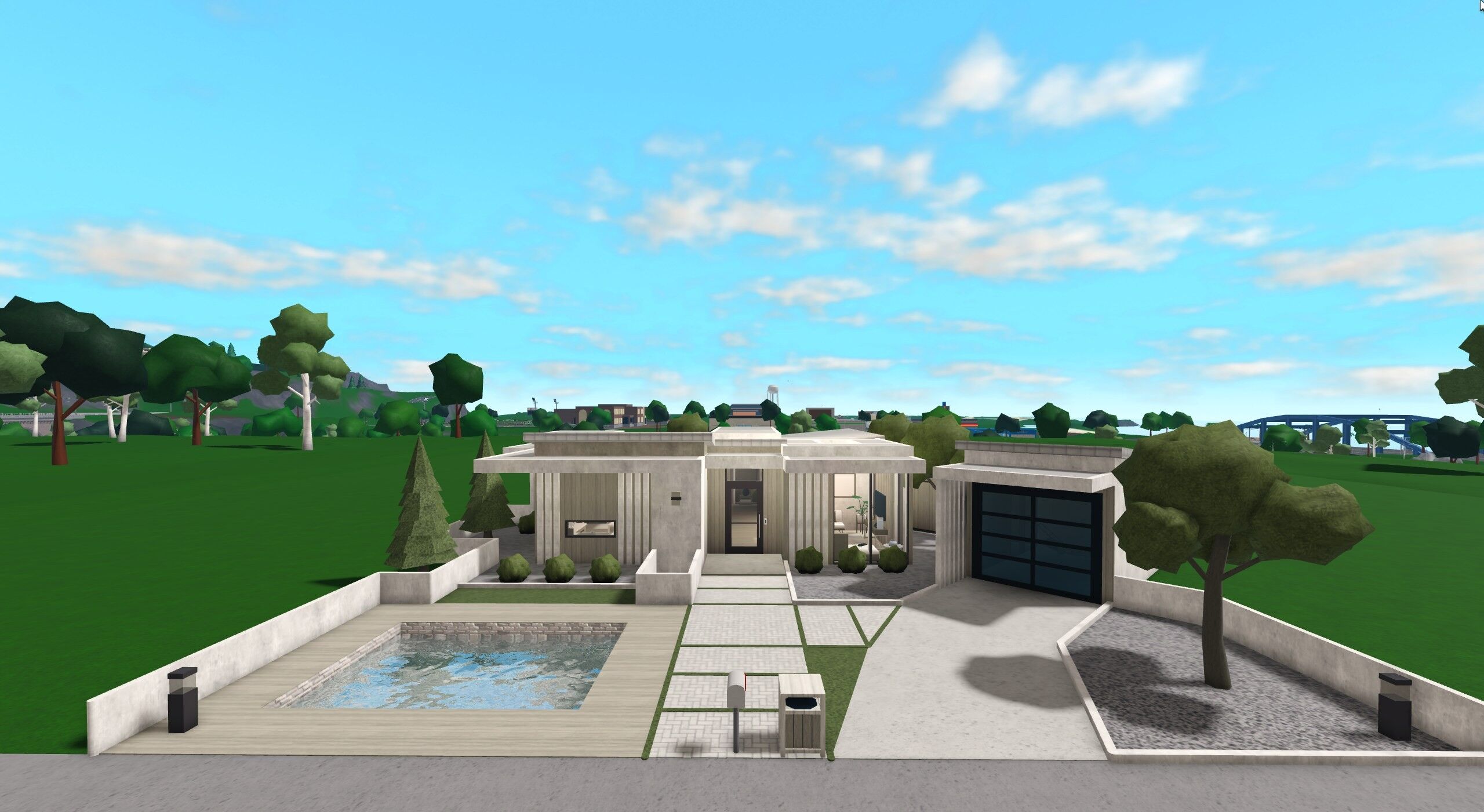 Courtyard Glass HouseA clean contemporary family home featuring bright neutral interiors, large glass openings, warm wood accents, a modern kitchen, detached garage, and a private courtyard-style pool area.$0.99Plot cost $117,400
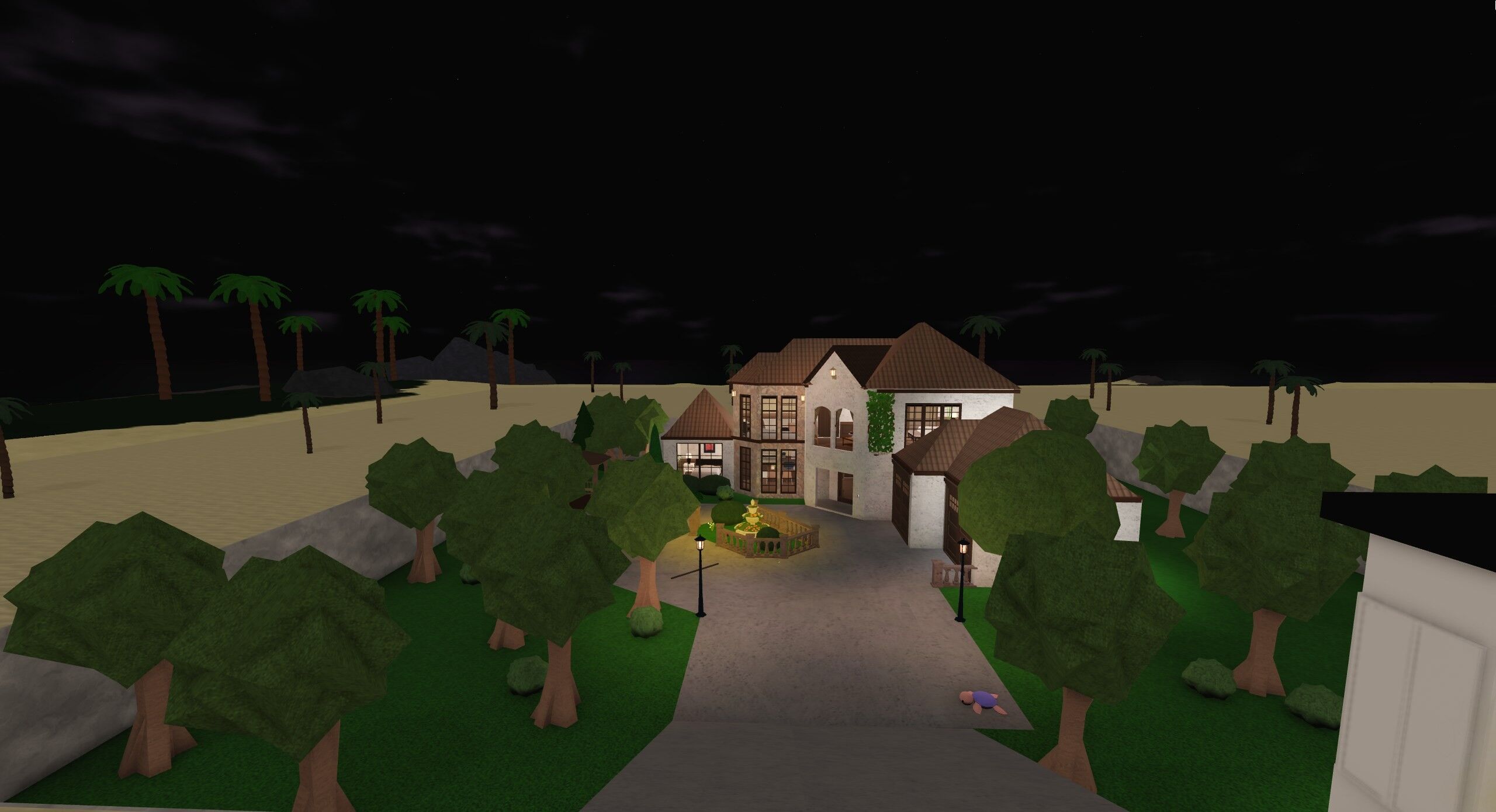 Terracotta HouseA small Mediterranean-inspired family home featuring warm stucco architecture, terracotta-style roofing, a private courtyard fountain, and cozy furnished interiors.$3.99Plot cost $141,500
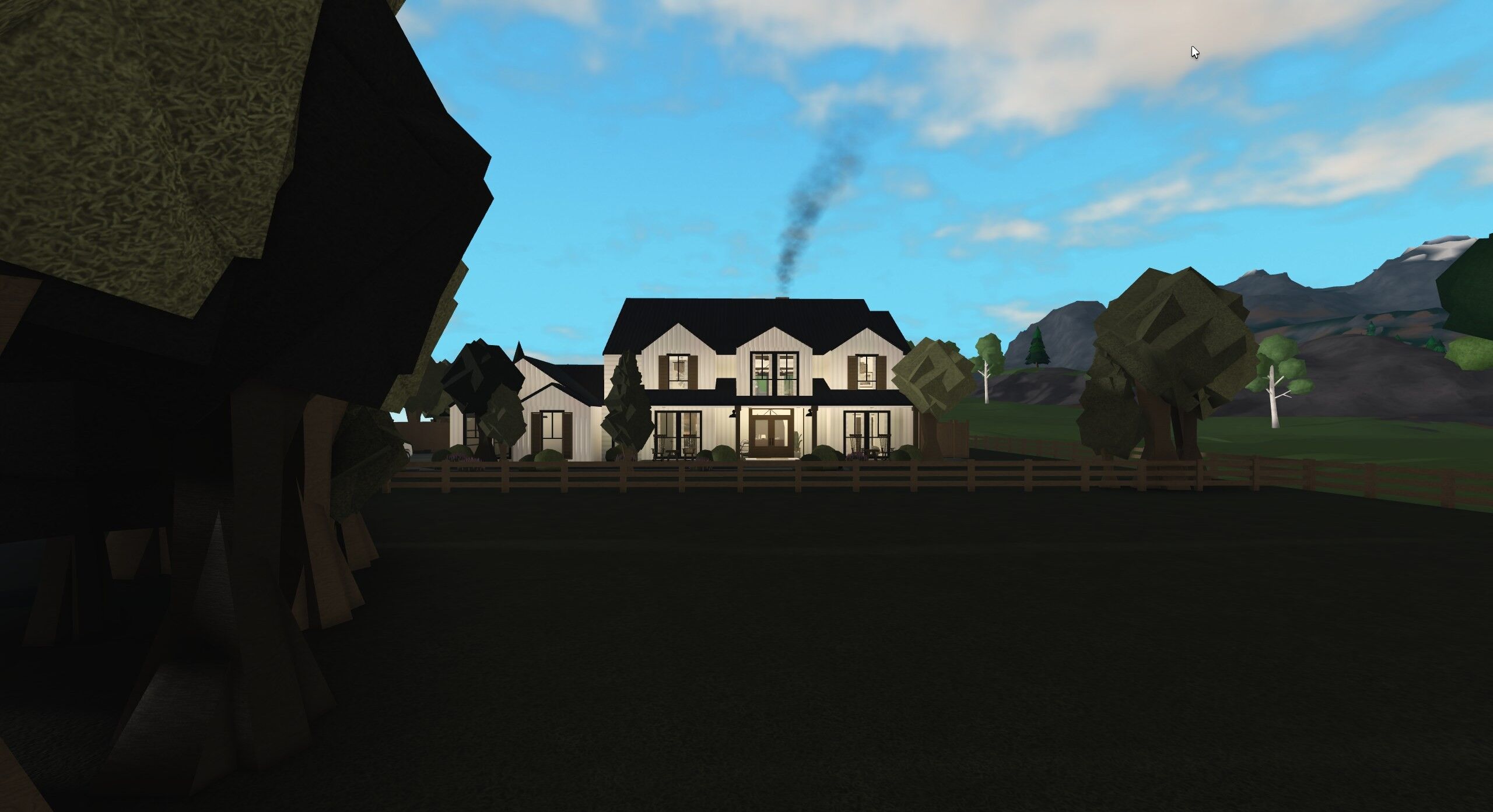 Whitewood FarmhouseA spacious modern farmhouse featuring warm dark-wood interiors, multiple furnished bedrooms, a nursery, large open family spaces, and a complete backyard play area.$12.99Plot cost $395,200
Sources#
Controls, refund rates and the inventory are from the Welcome to Bloxburg Wiki's Build Mode page, and placement modes from its changelog. Videos are by the creators named and embedded from YouTube.