
The difference in one sentence each#
- Advanced Placing (250 Robux) lets items overlap and sit inside each other, and unlocks the Scale tool to resize them.
- Transform Plus (600 Robux) lets you freely move and rotate basic shapes and structural pieces, not just the handful of items the free Transform tool supports.
The name trips people up. The gamepass is called Advanced Placing in the game, but almost everyone, including most build listings, calls it Advanced Placement. They are the same thing.
How often real builds need them: across our 68 finished builds, 94% need Advanced Placing and 90% need Transform Plus. Both numbers update as the catalog grows.
Advanced Placing#
Normally Build Mode refuses to let two items touch. That rule, collision checking, is what stops a counter going through a wall. Advanced Placing lets you switch it off, which is what makes detailed interiors possible: books overlapping on a shelf, a rug tucked under a bed, a plant half hidden behind a sofa.
How to use it
- Press K, or click the icon of two overlapping squares on the Build Mode sidebar. When the touching sides of the squares are dotted, collision is off.
- Quick check: pick up a counter and push it into a wall. If it goes through, collision is off.
- Press V for the Scale tool, click an item, and drag it longer, wider or taller. Not every item can be scaled, and some only in certain directions.
Things people do with it
- Stack cake stands into one tall display.
- Layer carpets to make floor patterns the game does not offer.
- Resize decorations, like making a painting smaller or a bush wider, so repeated items stop looking identical.
Scaling is not free. The cost depends on how much you change the size, how many directions you change it in, and the item's base price. And be careful with oddly shaped items while collision is off, because they can end up poking through walls without you noticing.
Transform Plus#
The Transform tool (press T) moves and rotates items with arrows, like Roblox Studio. Without the gamepass it only works on some objects. Transform Plus extends it to basic shapes and structurals, and loosens the limits on how far things can be moved and turned.
That is what lets builders make shapes the game has no item for: angled roof sections, curved walls built from rotated shapes, custom trim and furniture. BramP's slanted roof video is a good example of something that is simply not possible without it.
How to use it
- Press T and click an item.
- Switch between moving and rotating. Update 1.20.0 in May 2026 split these into two separate modes and changed some keybindings, so check the tool buttons on the sidebar if a key does not do what you expect.
- Press R while transforming to realign the arrows to the world, keeping the item's current rotation. This is the same as switching between local and global axes in Roblox Studio.
All the keys in one place#
| Key | What it does | Needs |
|---|---|---|
| K | Turn object collision on or off | Advanced Placing |
| V | Scale tool: make an item longer, wider or taller | Advanced Placing |
| T | Transform tool: move or rotate an item freely | Free for supported items, Transform Plus for basic shapes and structurals |
| R (in Transform) | Realign the arrows to the world while keeping the item's rotation | Transform tool |
| C | Clone tool: copy an item | None |
| F / Shift+Click | Paint tool / copy another item's colour | None |
These are PC keys as listed on the Welcome to Bloxburg Wiki. Update 1.20.0 updated some keybindings, so if one does not match, the sidebar buttons always work. On mobile the same tools are buttons on the Build Mode sidebar.
Do you need them?#
- Building your own simple house: no. You can build a complete, good looking home with neither.
- Detailed interiors and decorating: Advanced Placing is the one you will feel. It is also cheaper.
- Custom architecture: Transform Plus, and in practice Advanced Placing as well.
- Having a build placed on your plot: the account needs whatever gamepasses the build lists. A build made with Transform Plus cannot be recreated accurately without it, because those rotated shapes cannot be placed.
Prices for every gamepass, read live from Roblox, are on our gamepass prices page.
Bloxburg Builds makes finished Welcome to Bloxburg houses, cafes and estates, and places them on players' own plots for anyone who would rather skip the days in Build Mode. You do not need us to use anything on this page, though. The guides are free, they stay free, and lots of readers use them to build everything themselves. If you ever want a head start, these are a few of ours that fit this guide.
Builds that do not need Transform Plus
See all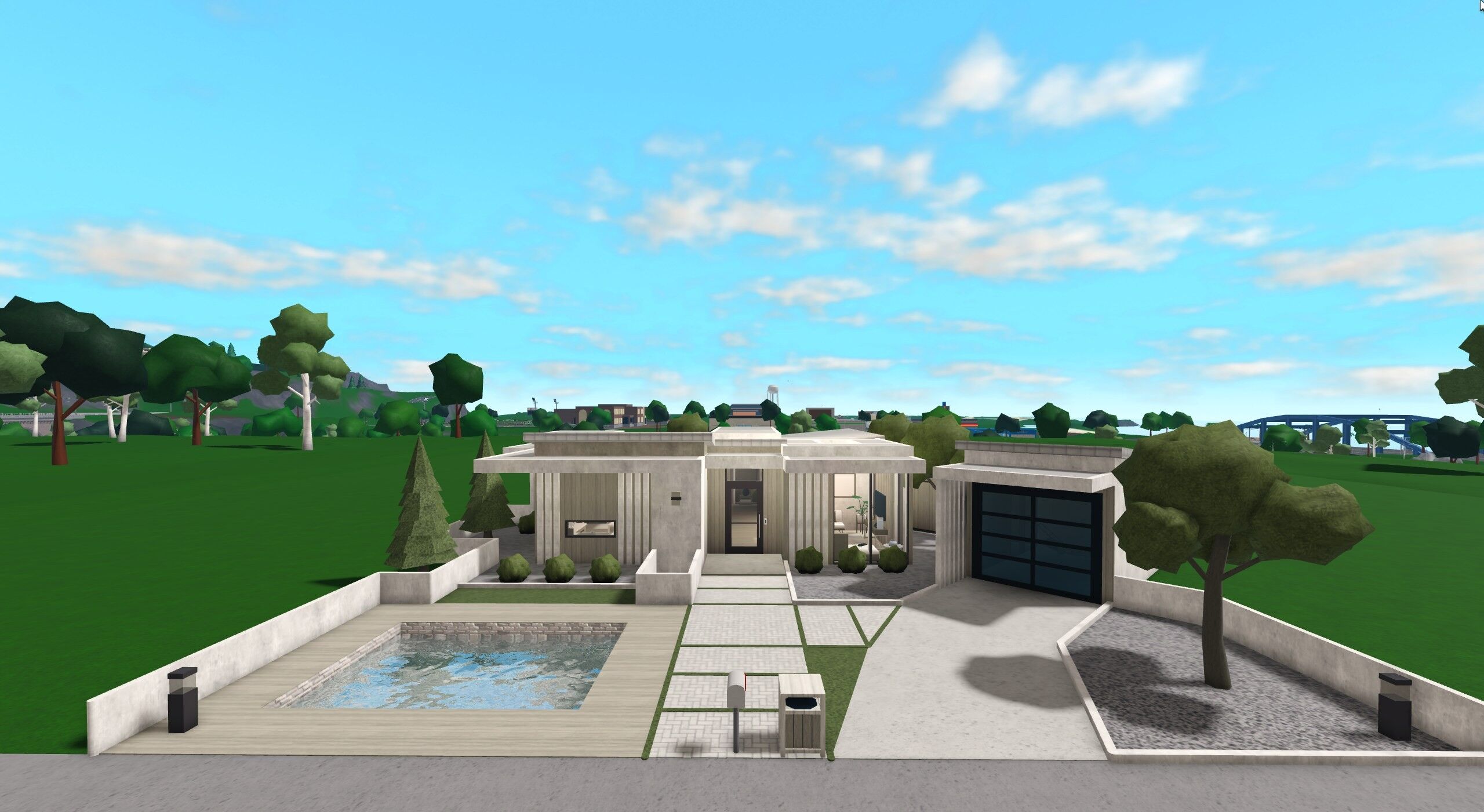 Courtyard Glass HouseA clean contemporary family home featuring bright neutral interiors, large glass openings, warm wood accents, a modern kitchen, detached garage, and a private courtyard-style pool area.$0.99Plot cost $117,400
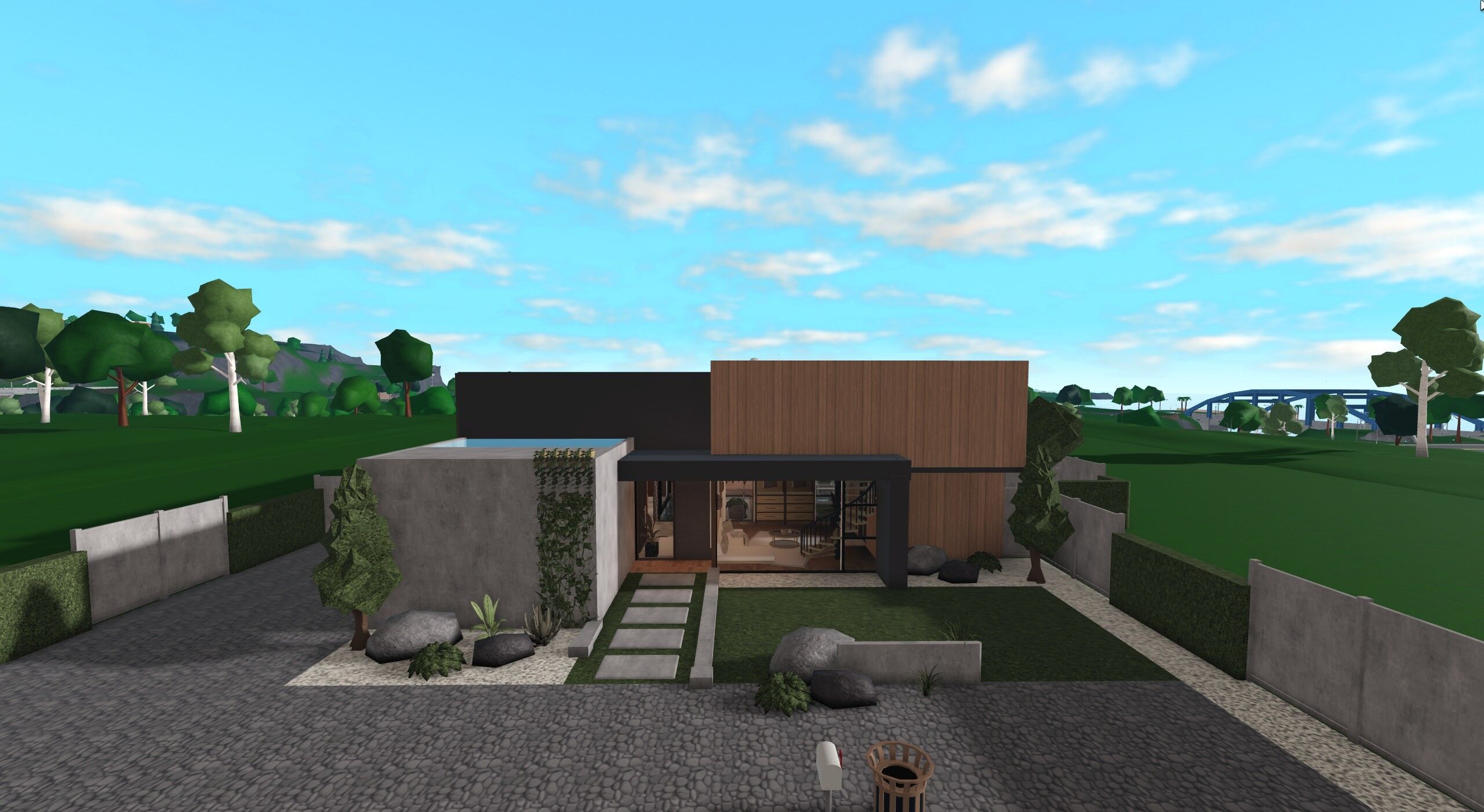 Timber Courtyard HouseA spacious contemporary family home featuring warm timber finishes, floor-to-ceiling glass, bright furnished interiors, and a private central courtyard with a swimming pool.$5.99Plot cost $201,900
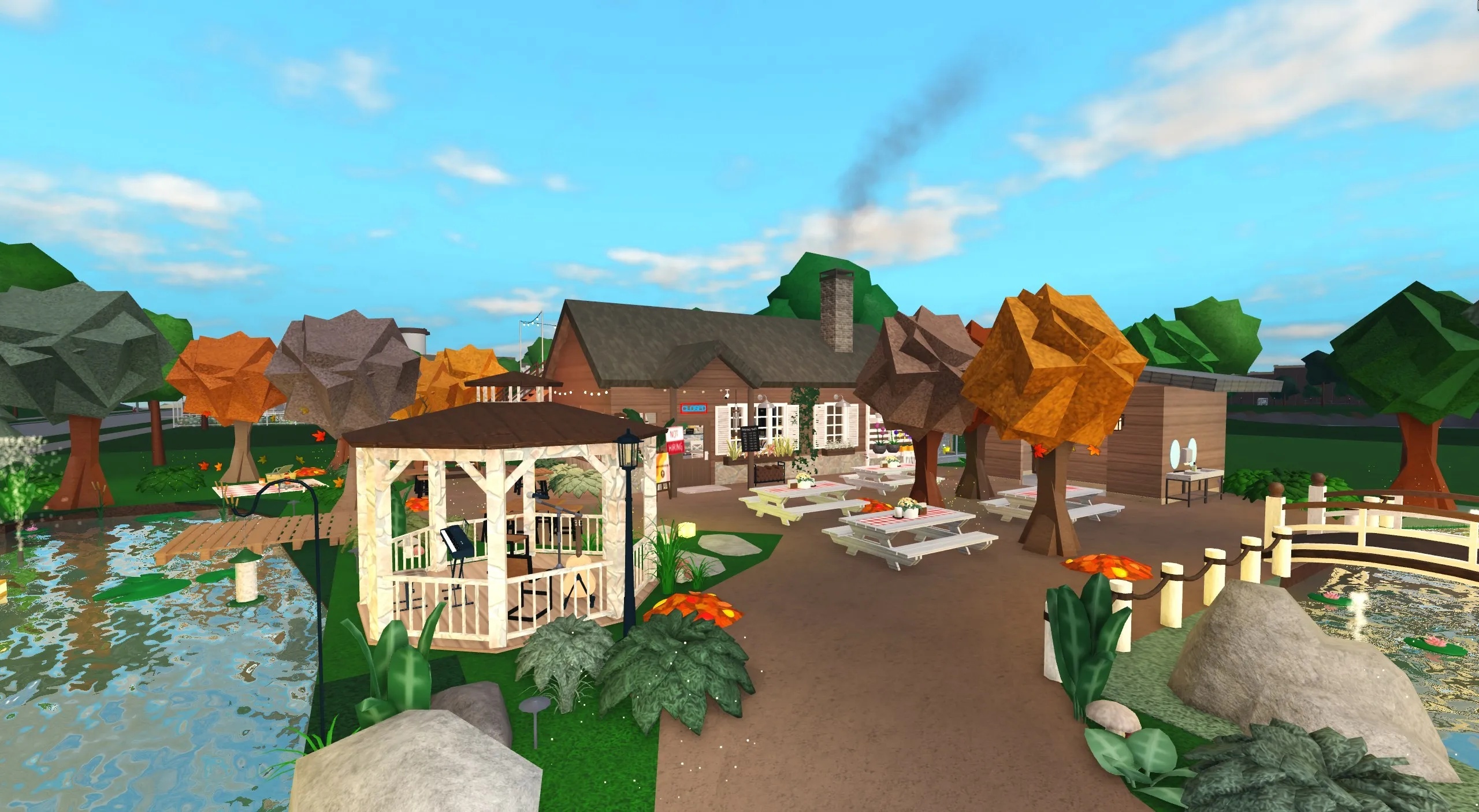 Autumnbrook Bakehouse🍰 Welcome to Bloxburg: Autumnbrook Bakehouse | Cozy Café & Garden A warm countryside café and bakery surrounded by landscaped ponds, autumn trees, outdoor dining areas, and a charming garden atmosphere.$7.99Plot cost $245,000
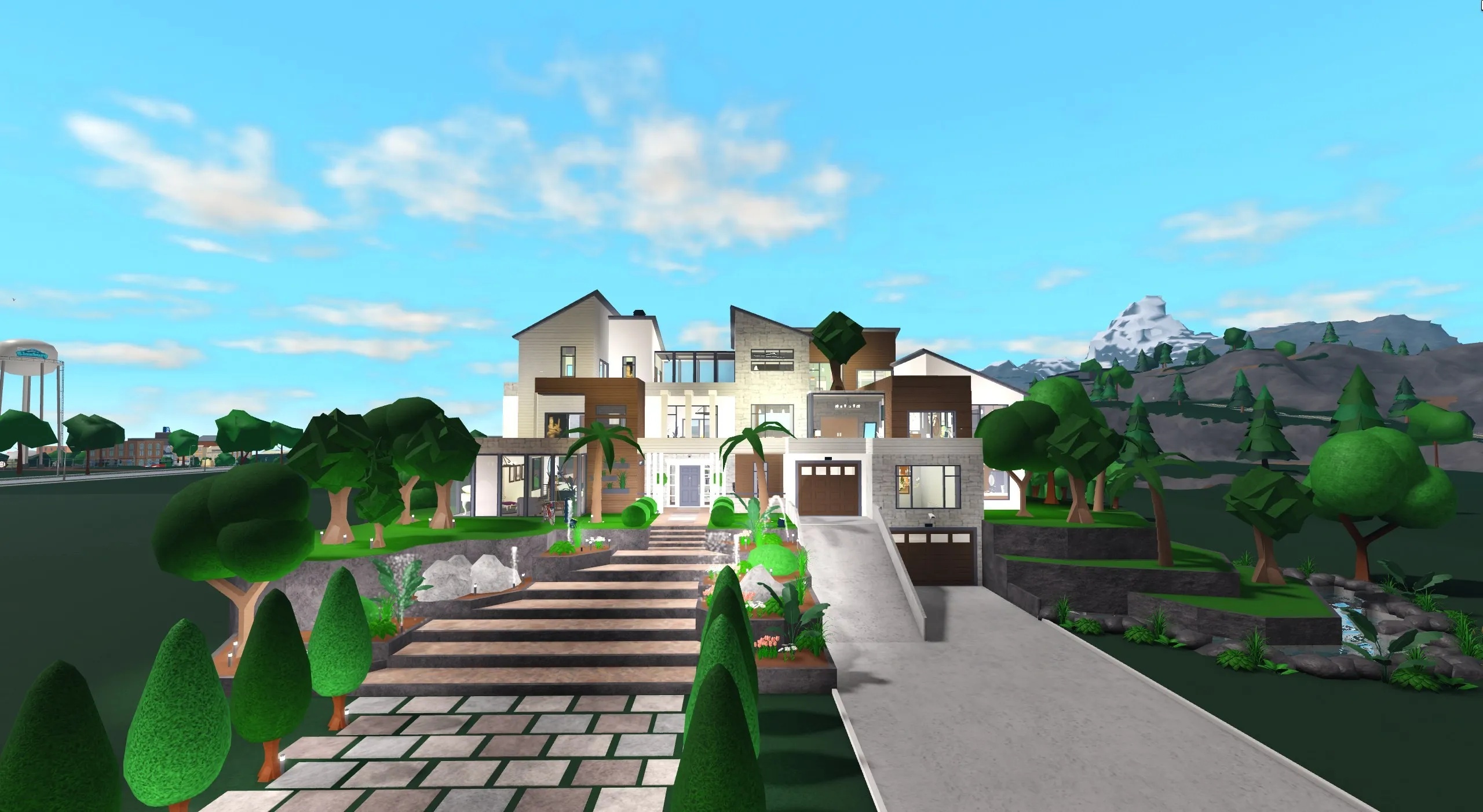 Cascade Row House🏡 Welcome to Bloxburg: Cascade Row House | Modern Hillside Home A large, fully furnished modern hillside home featuring unique multi-level architecture, stone-and-wood interiors, spacious family rooms, multiple bedrooms, garages, terraces, and an elaborate landscaped water area.$15.99Plot cost $676,700
Sources#
Controls and behaviour are from the Welcome to Bloxburg Wiki. Prices are read live from Roblox. Build percentages are read live from our catalog. Videos are by the creators named and embedded from YouTube.